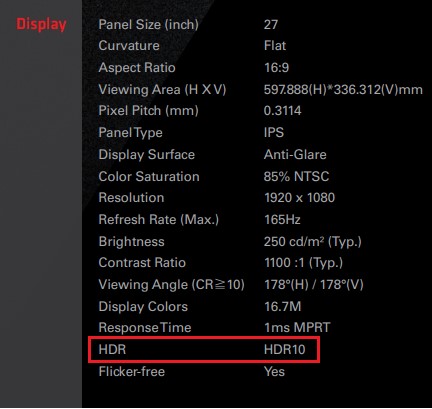
A:First check if your monitor supports HDR function. (High Dynamic Range)
You may check the product specifications on the ASRock website:
https://www.asrock.com/index.asp
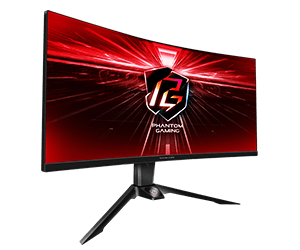
E.g. ASRock Gaming Monitor PG27FF1A supports HDR function.
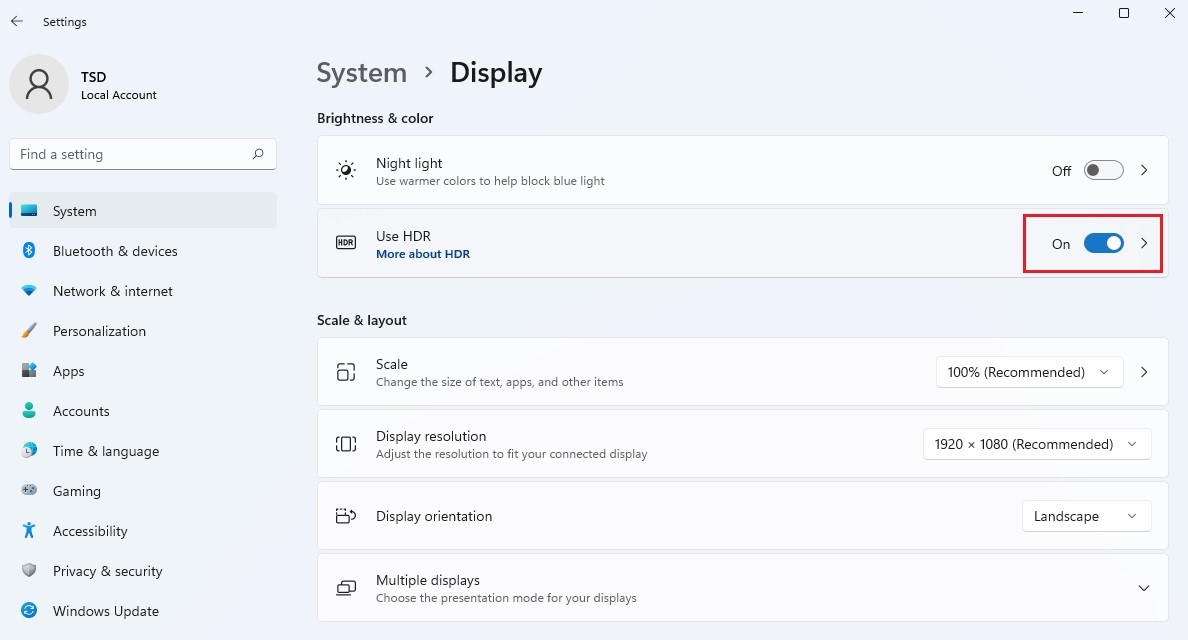
Settings under Windows 11:
1) Go to Settings> System> Display.
2) If your monitor supports HDR function, you may enable it.
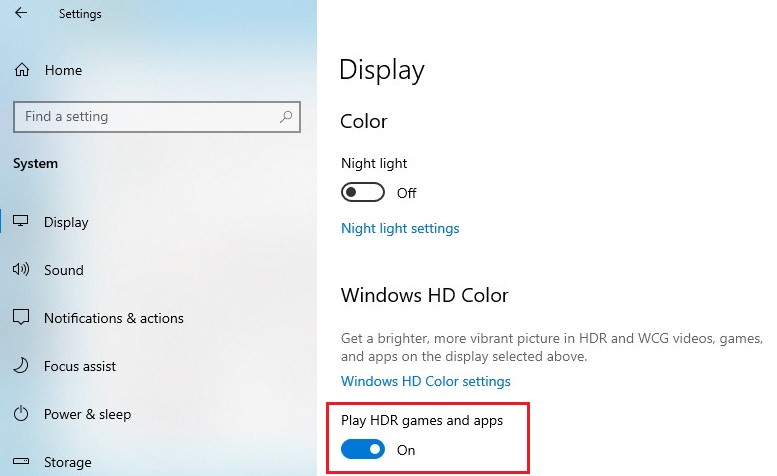
Settings under Windows 10:
1) Go to Settings> System> Display.
2) If your monitor supports HDR function, you may enable it.
Hardware requirements
- Processor: Intel 7th gen. processor or later
- Graphics card: NVidia GTX 10 Series or later/AMD RX500 Series or later
Software requirements
- OS: Windows 10 (ver:1709 or later)
- Software: Movies & TV with HEVC Codec installed
- Microsoft Edge Browser, PowerDVD 17 or later and VLC v3.0 (64bit) or later
 Cardápio