Motherboards button
Serie Placas Base
Graphics Card button
Serie Placas de video
Monitors button
Monitor De Juego
Power Supply button
Power Supply
Mini PC button
Serie Mini PC
Industrial PC button
Serie PC Industrial
Server/WS button
Serie Servidor / Estación de trabajo
Loading

Usamos cookies para ofrecerle una experiencia más personalizada y fluida.
Al visitar este sitio web, acepta nuestro uso de cookies. Si prefiere no aceptar cookies o necesita más información, visite nuestra Política de privacidad.

FAQ - Preguntas más frecuentes

Si está completamente seguro de la categoría de su pregunta, puede elegir más abajo una de las categorías para preguntas más frecuentes. Catálogo de Preguntas más frecuentes:

Resultados:
P (504): How do I check if the system can support Secure Boot?(10/1/2021)
R:In order to use Secure Boot, the drive with the operating system must use GPT partition style. Please refer to below steps to check the partition style.

Step 1: Right-click the Windows button on the desktop and select "Disk Management”.
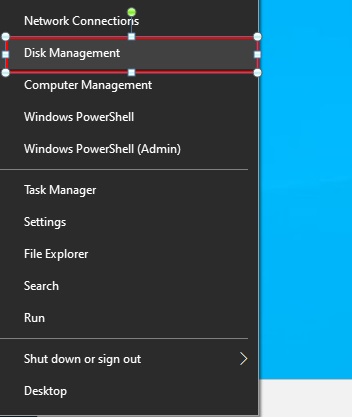
How do I check if the system can support Secure Boot? step1

Step 2: Right-click the disk where Windows is installed and select the "Properties”.
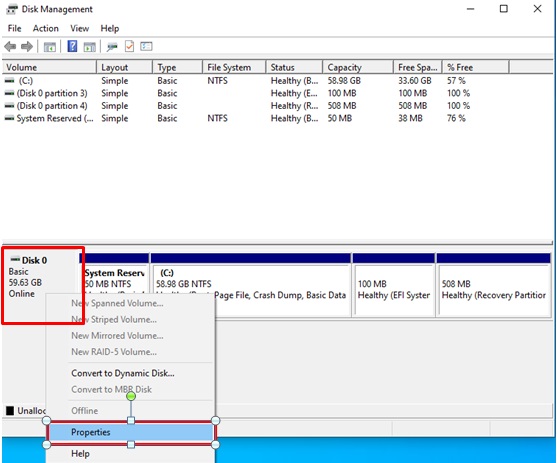
How do I check if the system can support Secure Boot? step2

Step 3: Click the "Volumes” tab and check if the partition style is "GPT”.
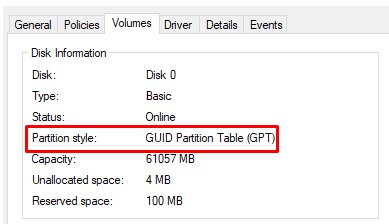
How do I check if the system can support Secure Boot? step3

Step 4: If the partition style is "MBR”, please make a backup of important data on the system and refer to steps 5 - 7 to convert the partition style to GPT.
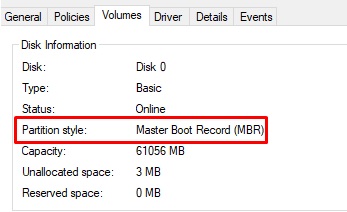
How do I check if the system can support Secure Boot? step4

Step 5: Type "CMD" in the Windows search bar, right-click on "Command Prompt” and choose to run as administrator.
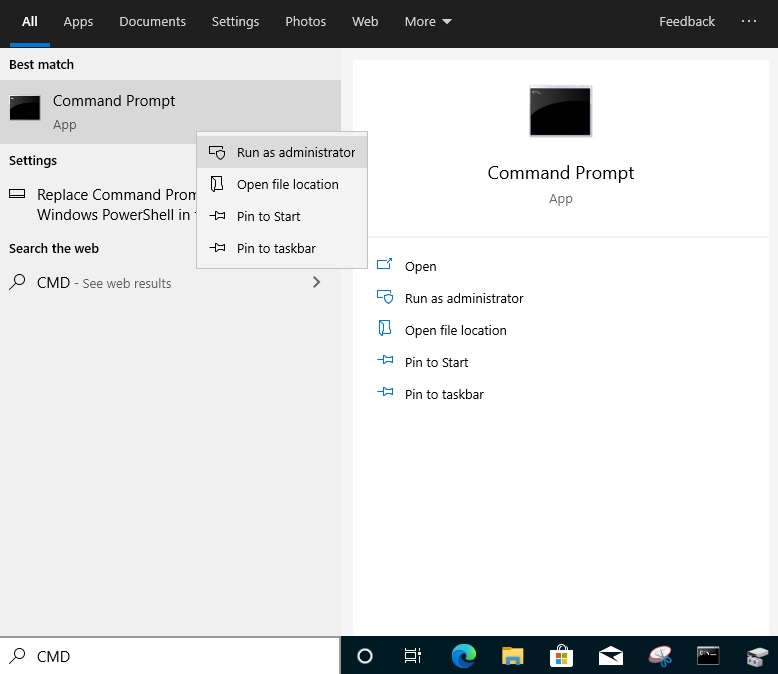
How do I check if the system can support Secure Boot? step5

Step 6: Type the command "mbr2gpt /convert /allowFullOS” to convert the partition style and press [Enter].
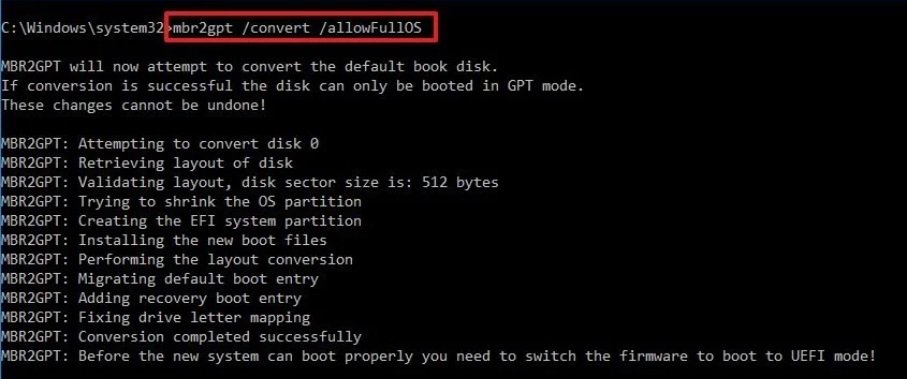
How do I check if the system can support Secure Boot? step6

Step 7: Restart the system and the BIOS Mode/Partition style will be converted to UEFI/GPT.